

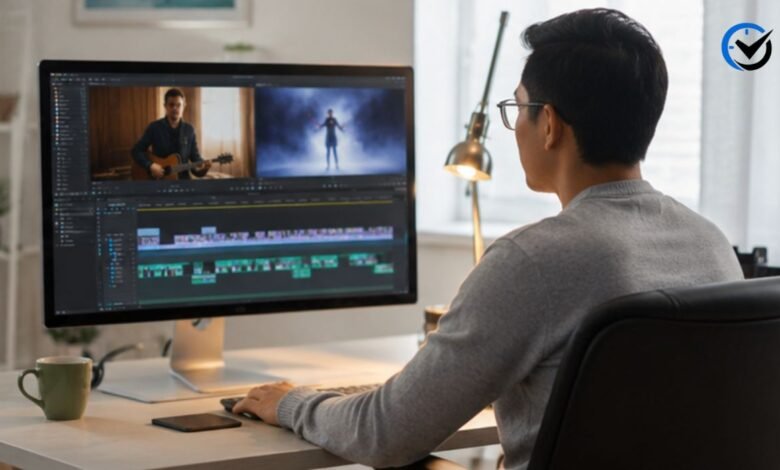
Video creation is no longer limited to professional editors. Businesses, teachers, creators, marketers, and everyday users now need to record, edit, caption, and share videos. VEED IO is built around this shift. It is a browser-based video creation platform that combines a conventional editor with recording, subtitles, stock media, audio tools, AI-assisted editing, and other content features. The goal is to keep common video tasks in one place.
What Is VEED IO?
VEED is an online video editing and creation service that works mainly through a web browser, with official iOS and Android apps for the main product as well. A project can begin with uploaded footage, a recording, or certain AI-assisted creation tools, then move into the editor for further changes. Its core editor supports familiar actions such as trimming, cropping, resizing, adding text, arranging clips, adding subtitles, and working with music or other media. This makes it useful for people who want practical editing tools without setting up a traditional desktop production environment.
Why People Choose an Online Editor
The biggest advantage of a browser-based editor is convenience. A user does not have to build a complicated local editing setup before starting a simple project. This is useful when working from different computers, collaborating with a team, or creating content while traveling. The visual workspace is beginner-friendly.
Less Software to Manage
Keeping recording and editing functions together can simplify a typical content workflow. Instead of recording a video in one application, creating captions somewhere else, and making final edits in another program, users can handle many of those steps within one service. This approach is particularly useful for people who produce short videos regularly and want to spend less time moving files between applications.
Starting a New Video Project
Creating a project can begin in several ways. Users can open a blank editor and upload files from their device, transfer media from a phone, record new material, or use an available AI creation path. Once the media is inside the project, the editing timeline becomes the main workspace. Users can start with existing footage or choose another creation method. Someone making a tutorial, for example, can record the screen first and then continue editing that recording in the same project.
Trimming and Cutting Clips
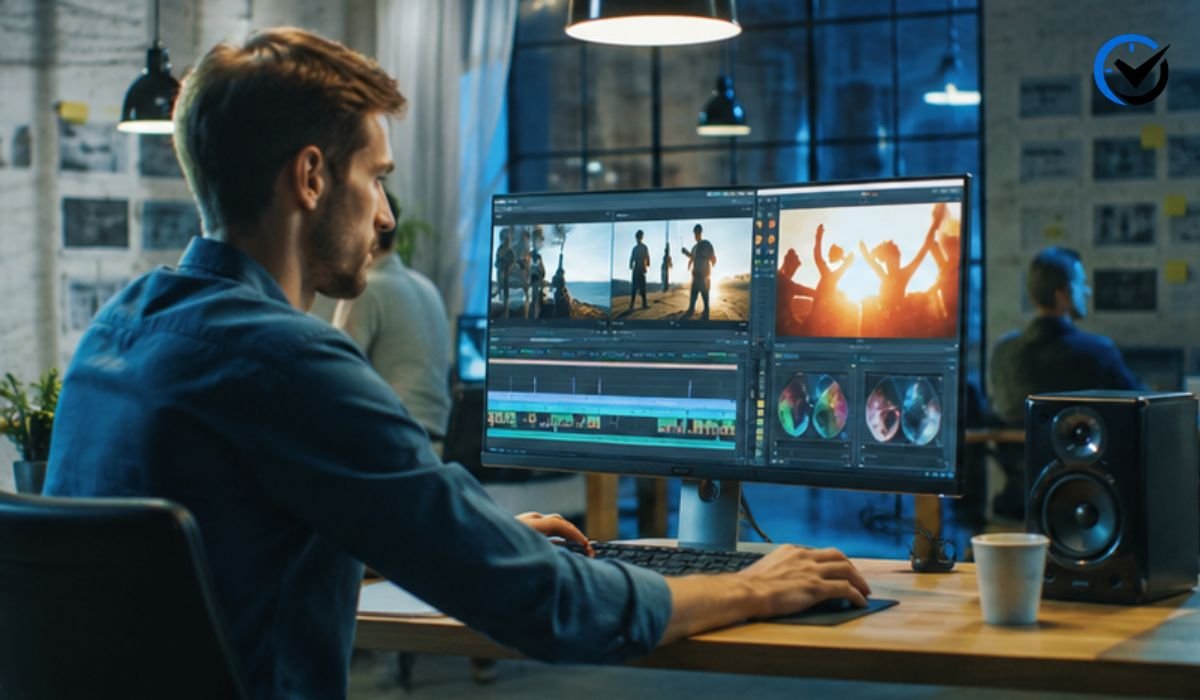
The everyday editing controls cover the jobs most short and medium-length videos require. Users can trim unwanted sections, split clips, crop footage, change the video frame, add text, and arrange different pieces in a chosen order. These controls handle much practical content work. For social posts, tutorials, presentations, interviews, product demonstrations, and internal videos, that balance can be more useful than an interface filled with controls that are rarely needed.
Arranging a Complete Story
Editing is not only about removing unwanted footage. The order of clips can change how viewers understand a video. A creator might begin with the most important point, follow it with supporting information, and finish with a clear conclusion. A simple timeline makes it possible to move sections around and improve pacing without rebuilding the entire project.
Text, Titles, and Visual Elements
Text can turn a simple recording into a clearer piece of communication. Creators can use captions, titles, labels, annotations, and other on-screen elements to emphasize important information. This is useful when viewers watch without sound or need visual explanations. The key is to keep text readable and timed correctly. Too many words or poor placement can make a video harder to understand, so editing judgment still matters.
Automatic Subtitles and Transcription
Subtitles are one of the platform’s more useful time-saving features. Instead of typing every spoken sentence manually, users can generate captions from audio and then edit the resulting text. The service also supports transcription and subtitle translation across many languages. This can help creators reach international audiences and make spoken content easier to follow. Automatic transcription should still be reviewed because accents, names, noise, and specialist terms can cause mistakes.
Why Caption Accuracy Matters
A caption error can change the meaning of a sentence, especially in educational, business, or technical videos. Reviewing the transcript before exporting is therefore important. Creators should pay particular attention to names, numbers, product terms, and sentences spoken quickly. Automated captions are useful for saving time, but they should be treated as an editing aid rather than something that never needs correction.
AI Editing Features
The platform has expanded beyond manual editing with AI-assisted tools. Its current AI video editor can perform tasks such as removing filler words, cleaning audio, adding subtitles, inserting B-roll, and adapting content for different formats. Other features can help with voiceovers, eye-contact correction, background removal, and automated editing. These tools are most useful when they reduce repetitive work, not when they are expected to make every creative decision. A good final video still needs human review for accuracy, pacing, tone, and context.
AI Video Creation vs AI-Generated Footage
One important distinction is easy to miss. Some of the platform’s AI creation features assemble a video from a script or prompt using elements such as stock clips, subtitles, music, voice generation, and avatars. That is different from generating every visual frame from scratch. The service’s current Gen-AI Studio documentation describes its output as using stock clips rather than generating AI video footage. Understanding this difference helps users choose the right tool and set realistic expectations.
Screen Recording and Webcam Recording
The built-in recorder extends the platform beyond traditional editing. Users can record a screen, browser tab, window, webcam, microphone audio, or combinations of these elements from a supported computer. This makes the service practical for software demonstrations, training, tutorials, presentations, and team communication. Recordings can then be opened in the editor for trimming, captions, music, audio cleanup, and other changes. The current screen recorder does not support recording from mobile devices.
Recording Presentations
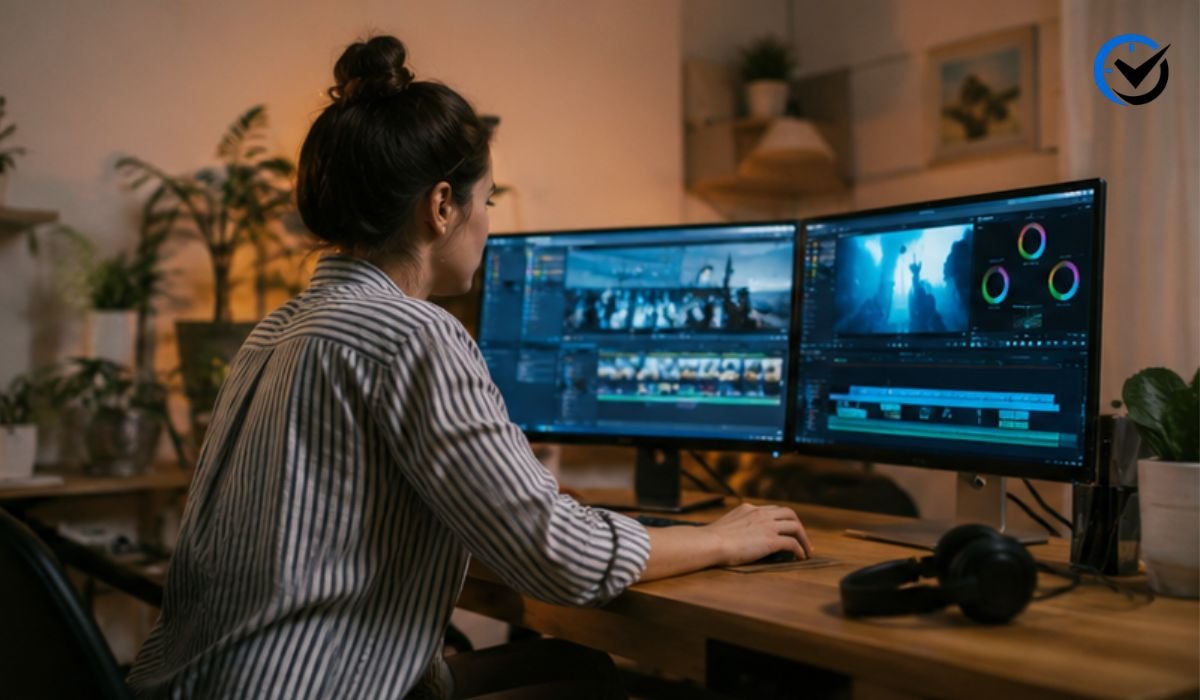
A presentation can combine screen content with a webcam view, allowing viewers to see both the information being discussed and the person explaining it. This format works well for lessons, product walkthroughs, demonstrations, and internal meetings. Users can also edit out pauses or mistakes after recording instead of trying to create a perfect take from the beginning.
Creating Tutorials and Product Demos
Screen recording is particularly valuable for tutorials because viewers can see exactly what the presenter is doing. A product demonstration can show a website, application, or workflow while the speaker explains each step. It also provides tools such as a teleprompter, captions, annotations, and AI-assisted cleanup. This reduces the need to capture a screen in one application, record narration in another, and combine everything somewhere else.
Turning Long Videos Into Short Clips
Long-form recordings often contain several useful moments that can work as short social videos. The platform’s AI Clips feature is designed to identify highlights, create shorter clips, add subtitles, center the speaker, remove filler words, and format content for destinations such as TikTok, Instagram Reels, and YouTube Shorts. This can save time for podcasters, educators, interview creators, and businesses reusing existing material. Automatic selection is a starting point, though, and the creator should check whether each chosen clip makes sense without the original context.
Stock Media and Audio
A video does not always contain everything needed to tell its story. Stock video and audio can fill visual gaps, support transitions, or make an explanation more engaging. The editor includes access to stock media and royalty-free audio for use within projects. This helps when a creator needs a supporting visual but lacks suitable footage. Users should still check media usage terms and choose assets that support the subject.
Export Quality and Watermarks
Export options depend on the plan being used. The current free plan supports 720p exports, while Creator supports up to 1080p and higher plans support up to 4K. Free and unauthenticated exports include a VEED watermark, while paid plans can export without it. This matters for client work, branded marketing material, or public-facing videos. If a project was exported with a watermark before upgrading, the original project needs to be exported again after the subscription change.
Free and Paid Plans
VEED offers a Free plan along with Creator, Pro, Studio, and Enterprise options. Features and limits can change, so check current plan details before purchasing. A free account is useful for testing the editor and basic workflow, but limitations can affect resolution, watermarking, AI usage, and other capabilities. Paid plans suit users who need broader production features, higher export quality, or regular access to advanced tools.
Who Should Use VEED IO?
The platform is a strong fit for creators who publish frequently, small businesses that need marketing videos, teachers making lessons, teams producing internal communication, and beginners learning the basics of editing. It can also be useful for people who want to record their screen and immediately turn that recording into a finished presentation or tutorial. Its value is less about replacing professional editing programs and more about helping users complete common video projects efficiently.
For Content Creators
Creators can use the editor for YouTube content, social clips, interviews, tutorials, promotional videos, and repurposed material. Features such as captions, resizing, AI Clips, and audio cleanup can make repetitive production tasks faster. The platform is especially useful when a creator needs to publish consistently without spending hours on every individual edit.
For Businesses and Teams
Businesses can use the platform for product demonstrations, social campaigns, onboarding material, presentations, training videos, announcements, and internal updates. Combining recording and editing can reduce the number of tools needed for routine communication. Teams should still establish sensible processes around brand assets, permissions, file access, and review.
Using It for Education
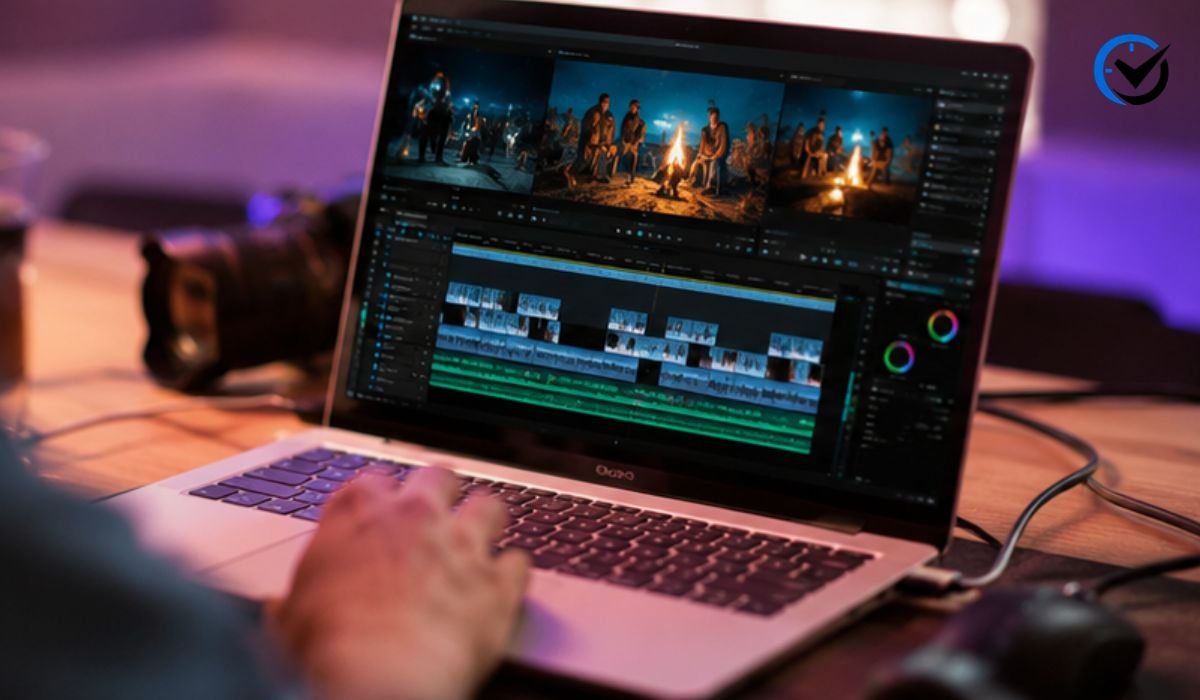
Teachers and instructors can use screen recordings, webcam footage, captions, and visual annotations to make lessons easier to follow. A software lesson can show the actual steps on screen, while a presentation can combine slides with a speaker’s explanation. Captions can support students who prefer reading along or have difficulty hearing audio. Good educational videos remain focused; the tool should clarify the lesson, not overload it.
Where It May Not Be the Best Choice
There are situations where a specialized desktop editor can make more sense. Feature-heavy film projects, complex visual effects, detailed color work, advanced audio mixing, and demanding offline workflows may require deeper controls than an online editor is designed to provide. Browser-based editing can also depend on a stable internet connection and the performance of the computer being used. Large projects and media files may take longer to upload or process than locally stored files on a powerful workstation.
How to Get Better Results
Good results come from planning as much as from software. Start with a clear purpose, remove unnecessary pauses, keep the strongest information early, and make text large enough to read on smaller screens. Review automatic captions and AI edits instead of accepting them without checking. When adapting one video into several formats, reconsider framing and pacing for each destination. These habits often matter more than extra effects or decoration.
Final Thoughts
VEED IO is best understood as an accessible online video workspace rather than a complete replacement for every professional editing application. Its combination of browser-based editing, screen and webcam recording, captions, stock media, AI-assisted tools, and flexible export options makes it practical for a wide range of everyday video projects. Its limitations are equally important to understand, particularly around free-plan exports, watermarks, advanced production needs, and the fact that AI features still require human review. For creators, educators, businesses, and beginners who want a simpler path from raw footage to a finished video, it can be a useful option when its current features and plan limits match the job.
Frequently Asked Questions
1. Is VEED IO free to use?
Yes. The Free plan provides core editing tools, but exports are limited to 720p and include a VEED watermark. Some AI tools have limited or trial access.
2. Can I edit videos without downloading software?
Yes. The main editor works in a web browser. VEED also provides iOS and Android apps, although features can differ by platform.
3. Does VEED IO have an AI video editor?
Yes. AI tools can assist with subtitles, audio cleanup, filler-word removal, B-roll, and other enhancements. AI-assisted creation can also build short videos from scripts or prompts using available media and generated elements.
4. Can I remove the VEED watermark?
Free exports contain a watermark. A paid plan is required for watermark-free exports. An existing watermarked file must be exported again from the original project after upgrading.
5. What video quality can VEED export?
Resolution depends on the plan. Free supports 720p, Creator up to 1080p, and Pro, Studio, and Enterprise up to 4K.
6. Can VEED create subtitles automatically?
Yes. It can automatically generate subtitles from spoken audio, which users can review and edit. Subtitle translation is also available in multiple languages.
7. Can I record my screen with VEED?
Yes. The online recorder can capture a screen, browser tab, window, webcam, and audio through supported desktop browsers. Recordings can then be edited.
8. Is VEED suitable for YouTube videos?
Yes, for many tutorials, talking-head videos, interviews, presentations, and short clips. The right choice depends on the editing control and workflow your channel needs.
9. Does VEED work on mobile devices?
Yes. VEED offers iOS and Android apps plus its browser editor. Individual tools can have device limits; its current screen recorder, for example, does not support recording from mobile devices.
10. Is VEED good for professional video editing?
It can handle many professional content tasks, especially marketing, training, social content, product demonstrations, and business communications. Complex film production or advanced post-production may call for specialized desktop software.
Recommended: Žižole Fruit Explained: What It Tastes Like and How to Enjoy It





One Comment