

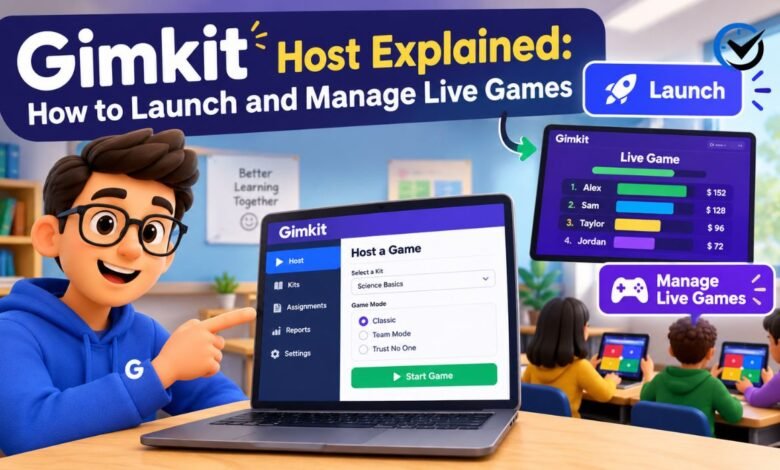
Running a lively classroom review is harder than it sounds, especially when students lose interest halfway through a worksheet. A Gimkit host solves part of that problem by turning ordinary questions into a fast, friendly competition that students play on their own devices. This article explains what the host does, how to start a live session, how to choose settings, and how to fix common problems.
What Gimkit Is and Why Teachers Like It
Gimkit is a game-based learning platform that began in 2017, when a high school student built it to make studying more fun. Instead of simply answering questions for points, players earn in-game money for correct answers and spend it on upgrades, power-ups, and other strategies. That small twist keeps students thinking about both the content and the game itself. Teachers around the world now use it for vocabulary drills, math practice, science review, and test preparation across many grade levels.
What a Gimkit Host Actually Does
The host is the person who controls a game session, and in most classrooms that is the teacher. The host chooses the question set, selects a game mode, adjusts the rules, and starts the match. While the game runs, the host can watch the live leaderboard, see how many players are active, and end the game when time is up. Students, by contrast, only need a join code and a device, which keeps the process light for everyone.
Creating Your Teacher Account
Before hosting anything, you need a teacher account. Signing up on the official Gimkit website is free and usually takes only a few minutes, using an email address or a school login such as Google. Once you are inside, the dashboard shows your saved kits, recent games, and folders. Students usually do not need accounts to join a live game, which saves valuable class time.
Building a Kit From Scratch
Every game starts with a kit, which is simply a set of questions and answers. To build one, choose the create option, give the kit a clear title, and add questions one at a time. Multiple-choice questions work best for quick play, while typed answers suit more advanced review. Adding images can help younger learners. Try to keep each kit focused on one topic, because a short, targeted set of questions usually produces better results than a long, mixed one.
Importing and Borrowing Questions
If typing every question feels slow, there are faster options. Many hosts import questions from a spreadsheet, copy them from an existing study set, or browse the public kit library, where other teachers share ready-made material. Always read through any imported or borrowed kit before using it. Small errors, outdated facts, or questions that do not match your lesson can confuse students, and fixing them beforehand takes far less time than correcting them in the middle of a game.
Live Games Versus Assignments
Gimkit offers two main ways to use a kit. A live game happens in real time, with the whole class playing together while the host controls the pace and the rules. An assignment, often called homework mode, lets students play on their own schedule before a due date you choose. Live sessions build energy and friendly competition in the room, while assignments give extra practice at home. Many teachers use both, starting with a live game and following up with an assignment.
How to Launch a Live Game
To launch a live game, open your kit from your Gimkit dashboard and select the option to host it live. Gimkit then asks you to pick a game mode and review the settings. After you confirm, a lobby opens with a unique join code displayed on your screen. Share that code with your students by reading it aloud, writing it on the board, or projecting the screen. When everyone has joined, press the start button, and the questions begin appearing on student devices right away.
Choosing the Right Game Mode
The game mode shapes the whole experience, so choose it with your goal in mind. Classic mode is a good starting point because it is easy to explain and works with any kit. Team modes encourage cooperation, while creative modes add objectives like avoiding traps or racing to collect items. Some modes suit short review sessions, and others work better when you have extra time. If you are new to hosting, try one familiar mode a few times before exploring the rest.
Understanding Game Settings
Before starting, look closely at the settings, since they decide how long the game lasts and how it feels. Most hosts can set a time limit or a money goal, choose whether questions appear in random order, and decide if late arrivals may join. Options differ slightly between game modes, so check them each time. A ten to fifteen minute game usually works well for review, because it keeps energy high without tiring students out.
How Students Join a Session
Students can join from a laptop, tablet, or phone using a web browser. They open the Gimkit join page, type the code, and enter a name. Remind them to use their real first name or a school-approved nickname, since the host sees every entry. Joining takes less than a minute when the code is clearly visible. If a student is stuck, a quick refresh of the page or a check of the internet connection solves most problems.
Managing the Lobby
The lobby is the waiting room, and it deserves a little attention. As names appear on the host screen, you can see who is present and spot any inappropriate or confusing names. If needed, you can remove a player before the game starts. Give students a minute or two to join, then announce the countdown so latecomers hurry. Starting too early leaves some students behind, while waiting too long wastes the excitement.
Running the Game Smoothly
Once the game is running, your role shifts from setup to guidance. The host screen shows the live leaderboard and overall progress, which helps you notice who is thriving and who may need support. You can usually pause the session to explain a tricky concept, then resume without losing progress. Walk around the room while students play, because quick comments and encouragement often matter more than anything on the screen. When time ends, the final results appear automatically.
Using Teams and Group Play
Group play can change the mood of a class completely. In team-based modes, students share a goal and work together, which helps quieter learners take part without pressure. Assign teams ahead of time if you want balanced groups, or let students form their own for a faster start. Encourage teammates to talk through each answer. The conversation itself often teaches more than the question, and it gives you a chance to hear how students reason.
Reading Reports After the Game
After the game ends, Gimkit creates a report that shows how the class performed. You can see overall accuracy, which questions caused the most mistakes, and how each student did. This information is the real value behind the fun. If most students missed the same question, you know what to reteach tomorrow. If one student struggled across many questions, a short private conversation can help. Treat the report as a teaching guide rather than a grade.
Hosting in Online and Hybrid Classes
Hosting works well in online and hybrid classes too. Start a live game, share your screen through your video meeting tool, and give the join code in the chat window. Students play from their own homes while you follow the leaderboard together. Keep sessions a little shorter online, since attention fades faster on a screen. Also remind students to keep the game tab open, because switching windows can interrupt their connection or cause them to miss questions.
Fixing Common Problems
Most problems are small and easy to fix. If a code does not work, check that the game is still open and that students typed it correctly. If the screen freezes, refresh the page and rejoin with the same name. Slow school Wi-Fi can cause delays, so ask students to move closer to the router if possible.
Tips for Keeping Students Focused
Keeping students focused is mostly about preparation. Set clear expectations before the game starts, such as using appropriate names and respecting classmates. Keep questions short and clear, and mix easy and challenging ones so everyone feels successful. Use games as a review tool, not a replacement for teaching. Finally, stay flexible. If a mode is not working, end it early and try another one next time, rather than forcing a lesson that is falling flat.
Free and Paid Plans
Gimkit offers a free plan and paid plans, and the differences can change over time. The free version lets you create kits and host basic live games, but some modes, report features, or kit limits may require a paid subscription. Check the current details on the Gimkit Pro help page before committing to anything. Many teachers start free, learn the tools, and only upgrade if they find they need extra modes or features.
Final Thoughts
Hosting a game is easier than it first appears. You build or choose a kit, pick a mode, share a code, and guide students as they play. The real benefit comes afterward, when the report shows what your class understands and where they need help. Start small with a short Classic game, learn how the controls feel, and expand from there. With a little practice, a Gimkit host can turn review time into one of the most enjoyable parts of the week.
Frequently Asked Questions (FAQs)
1. What is a Gimkit host?
A Gimkit host is the person who starts and controls a game session, usually a teacher. The host chooses the kit, picks the mode, and manages the game from start to finish.
2. Do students need an account to join a hosted game?
In most live games, no. Students open the join page, enter the code, and type a name. Assignments and some school setups may ask for a login.
3. Is hosting a game free?
A free plan lets teachers create kits and host basic games. Certain modes and extra features may need a paid plan, so review the current options before upgrading.
4. How many players can join one session?
The limit depends on your plan and may change over time. Check your account details before hosting a very large group, such as several classes together.
5. Can I host a game without a projector?
Yes. Students only need their own devices and the join code. A projector helps everyone watch the leaderboard, but you can also read the code aloud.
6. What is the difference between a live game and an assignment?
A live game runs in real time with the whole class, while an assignment lets students play alone before a deadline. Live games build energy, and assignments build practice.
7. Why can’t students join my game?
Check that the game is still open, the code is typed correctly, and the device has a stable internet connection. Refreshing the page often fixes the issue.
8. Which game mode is best for beginners?
Classic mode is the easiest place to start. It is simple to explain, works with any kit, and lets you learn the controls before trying more complex modes.
9. Can I see how students performed afterward?
Yes. A report shows overall accuracy, difficult questions, and individual results. Use it to decide what to review next and which students may need extra help.
10. How long should a hosted game last?
Ten to fifteen minutes works well for most classes. Younger students or online groups may do better with shorter sessions that keep attention high.
Recommended: Performance Tuning Toolkit: Best Practices for Optimizing Application Efficiency



One Comment