

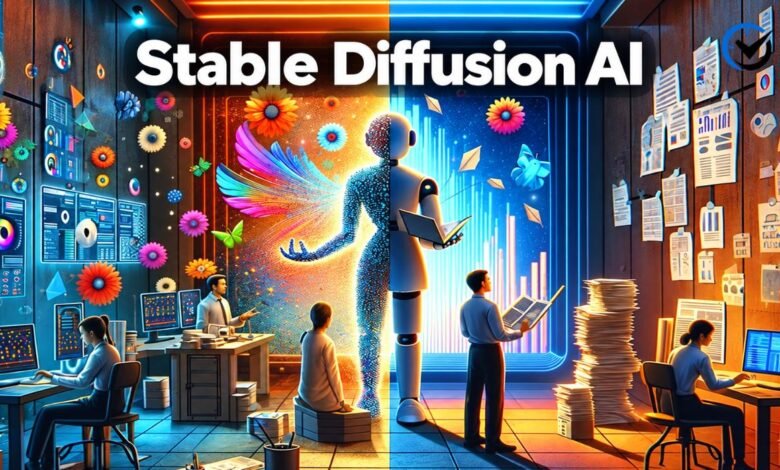
Stable Diffusion AI has become an important part of modern image creation because it gives people a way to turn written ideas into detailed digital images. Unlike traditional design software, where every element may need to be created or adjusted by hand, an image-generation model can produce a starting point from a simple description. Over time, the technology has developed from early Stable Diffusion releases into more capable model families such as SDXL and Stable Diffusion 3.5. At the same time, tools such as web interfaces, model libraries, LoRAs, ControlNet, and image-to-image workflows have made the technology useful for artists, designers, developers, marketers, educators, and hobbyists.
What Is Stable Diffusion AI?
Stable Diffusion AI is a family of generative image models designed to create or modify images using written instructions and other inputs. A user can describe a scene, subject, style, lighting, composition, or mood, and the model attempts to translate those instructions into an image. It can also work with an existing picture for tasks such as variations, transformations, restoration, and selective editing. The technology is especially notable because many versions can be operated locally rather than requiring every generation to happen through a remote service.
How Does the Technology Work?
The basic idea is easier to understand than the underlying mathematics. During training, the model learns visual patterns from large collections of images and associated information. During generation, it begins with visual noise and gradually transforms that noise into an image that matches the supplied instructions. This process is influenced by the selected model, prompt, sampling settings, image dimensions, seed, and other controls. Because the process involves probability, the same prompt can produce different results unless settings such as the seed are kept consistent.
Why Model Choice Matters
One of the most important lessons for new users is that there is no single version that produces every type of image equally well. Different models have different strengths, training characteristics, resource requirements, and compatibility with supporting tools. A model designed for a particular generation method may respond poorly when used with an incompatible LoRA or workflow. This is why experienced users normally choose the model first and then build the rest of their workflow around it instead of treating every checkpoint as interchangeable.
Understanding SDXL
SDXL, or Stable Diffusion XL, represented a major development in the Stable Diffusion family. It was designed to improve image quality, composition, detail, and the handling of more demanding prompts compared with earlier generations. SDXL became widely used for general-purpose image creation and helped establish higher-resolution generation as a more practical option for local users. Its ecosystem also developed around custom checkpoints, LoRAs, refiners, ControlNet tools, and other extensions, giving creators many ways to adjust the basic generation process.
What Makes Stable Diffusion 3.5 Different?
Stable Diffusion 3.5 introduced another significant step in the model family, with Large, Large Turbo, and Medium variants released as part of the series. The family was designed with attention to image quality, prompt understanding, customization, and the ability to run on consumer hardware. The different versions are aimed at different balances between quality, speed, and computing requirements. For users exploring newer workflows, choosing the appropriate 3.5 variant can therefore be just as important as writing a good prompt.
SDXL vs. SD 3.5
Comparing SDXL with Stable Diffusion 3.5 is not simply a matter of deciding which model is universally better. SDXL has a mature ecosystem with many community-made resources, while newer 3.5 models bring improvements in areas such as prompt adherence and model capabilities. Compatibility also matters. A workflow created around SDXL checkpoints, LoRAs, and control tools may not transfer directly to another model family. The practical choice depends on the desired image style, available hardware, supporting tools, and how much customization the user wants.
Writing Better Prompts
A prompt is the written instruction that tells the model what kind of image to create. Beginners often make prompts unnecessarily long, assuming that more words automatically produce better results. In practice, clarity is usually more useful. A strong prompt can identify the main subject, setting, visual style, lighting, camera perspective, composition, and important details. It is also helpful to describe what matters most instead of filling the prompt with unrelated adjectives. Small changes in wording can significantly alter the final image.
Positive and Negative Prompts
Many Stable Diffusion interfaces separate instructions into positive and negative prompts. The positive prompt describes what should appear, while the negative prompt can identify unwanted characteristics. For example, a creator working on a portrait might use the negative field to discourage distorted anatomy, unwanted artifacts, or poor image quality. However, negative prompts are not a universal solution. Their usefulness depends on the model and workflow, and excessive negative instructions can sometimes interfere with the result rather than improve it.
Seeds and Repeatable Results
A seed is a numerical value used to control the starting noise from which an image is generated. When other important settings remain unchanged, using the same seed can help reproduce or closely revisit a previous result. This is particularly useful when refining an image because the creator can change one element at a time instead of starting from an entirely different composition. Keeping notes about the model, prompt, seed, dimensions, and settings can make experimentation much easier and more organized.
Text-to-Image Generation
Text-to-image is the most recognizable workflow. The user provides a description, selects a model and generation settings, and produces one or more images. The first result should usually be viewed as a starting point rather than a final product. If the composition is close but the lighting, subject, or details are wrong, the creator can adjust the prompt or settings and generate another version. This process of controlled experimentation is often more effective than trying to create a perfect prompt in a single attempt.
Image-to-Image Workflows
Image-to-image generation allows an existing image to influence a new result. Instead of starting entirely from random noise, the system uses the original image as a visual reference and changes it according to the prompt and selected strength. This can be useful for changing an illustration style, developing a concept sketch, improving a rough composition, or creating variations from an existing design. The amount of change can be controlled, allowing users to decide whether the original image should remain recognizable or be transformed substantially.
Inpainting and Selective Editing
Inpainting focuses on changing a selected area of an image while preserving much of the surrounding content. A creator might use it to replace an object, correct part of a composition, modify clothing, or repair an unwanted section. This makes generative models more practical for editing because the user does not always need to regenerate the entire image. Careful masking is important, however, because the system still needs enough surrounding information to create an edit that fits naturally into the original scene.
LoRA and Customization
LoRA is a popular method for adding specialized behavior or visual characteristics without replacing an entire base model. A LoRA can be trained or prepared to influence a particular character, style, subject, or concept. Users typically combine it with a compatible base model and adjust its strength during generation. The result depends heavily on compatibility and training quality. A poorly matched LoRA can produce inconsistent images, so creators should check which model family and workflow it was designed for before using it.
ControlNet and More Precise Control
ControlNet became popular because ordinary prompting does not always provide enough control over composition or structure. It can use information such as poses, edges, depth, or other visual guidance to influence how an image is generated. This is especially helpful when the creator already knows where subjects should appear or wants to preserve a particular pose. Instead of relying only on descriptive language, the workflow can combine text instructions with visual structure, giving the user more predictable control over the result.
Choosing a Generation Tool
The model is only one part of the experience. Users can access Stable Diffusion workflows through different interfaces, each offering a different balance of simplicity and control. AUTOMATIC1111’s Stable Diffusion WebUI provides a browser-based environment with support for common generation and customization features. Forge is another interface built around Stable Diffusion WebUI with an emphasis on resource management and performance. More advanced users may also prefer node-based environments when they need highly repeatable and complex workflows.
Hardware and Local Generation
Running image models locally requires suitable computer hardware, and the exact requirements vary by model, resolution, and settings. Graphics memory is particularly important because larger models and higher-resolution images can require more resources. Users with limited hardware can often reduce image dimensions, use memory-saving options, or select a lighter model. Some workflows can also use CPU or other forms of offloading, although this may reduce generation speed. Before installing anything, it is sensible to check the requirements of the specific model and interface rather than relying on a general hardware recommendation.
A Practical Workflow for Beginners
A simple workflow can make the learning process much less confusing. Start with one compatible model and create a basic text-to-image generation. Once the results are understandable, experiment with prompt wording and seeds. After that, move to image-to-image and inpainting before adding more advanced tools such as LoRAs or ControlNet. Changing several settings at once makes it difficult to understand what actually improved the result. A gradual approach helps users build practical knowledge while keeping the number of variables under control.
Common Problems and How to Avoid Them
New users often encounter distorted hands, inconsistent faces, unwanted objects, strange text, poor composition, or images that do not follow the prompt. These problems do not necessarily mean the technology is failing. They can result from the selected model, prompt structure, resolution, sampling settings, incompatible extensions, or excessive guidance. It is usually better to change one variable at a time and compare the results. Keeping a small record of successful settings can also prevent users from repeatedly solving the same problem from scratch.
Responsible Use and Creative Limitations
Generative image technology is powerful, but it has important limitations. Models can reproduce unwanted biases, create misleading images, imitate recognizable styles, or produce content that raises questions about consent and ownership. Users should also be careful when creating images of real people, particularly when the result could misrepresent them. The technology works best as a creative tool rather than an automatic replacement for judgment. Human review remains important when an image is being used for advertising, journalism, education, professional design, or any situation where accuracy matters.
The Future of Local Image Generation
The development of these models is moving toward greater control, better prompt understanding, faster generation, and more flexible editing. Newer model families are also making it easier to combine text, images, and specialized controls within the same creative process. At the same time, local generation continues to attract users who value customization and control over their files and workflows. The most useful direction is not simply producing prettier images, but giving creators more reliable ways to turn an idea into a result that can be adjusted and refined.
Final Thoughts
Stable Diffusion AI has grown from a relatively specialized image-generation technology into a broad creative ecosystem. SDXL remains important because of its mature tools and community support, while Stable Diffusion 3.5 represents a newer generation with different capabilities and model options. The strongest results usually come from understanding how the model, prompt, seed, interface, and editing tools work together. Beginners do not need to learn every feature immediately. Starting with a compatible model, clear prompts, simple experiments, and a repeatable workflow provides a practical foundation for exploring everything this technology can offer.
Frequently Asked Questions
1. What is Stable Diffusion AI used for?
It is used to create and modify digital images from text descriptions, reference images, and other forms of visual guidance. Common applications include concept art, illustrations, product ideas, portraits, backgrounds, design exploration, image variations, and selective editing. Its flexibility makes it useful for both personal projects and professional creative work.
2. Is Stable Diffusion AI free to use?
Some versions and tools can be run locally without paying for each individual image, while other services charge for access or usage. The exact cost depends on the model, platform, license, and method of use. Users should always check the terms associated with the specific model or service they choose.
3. What is SDXL?
SDXL is a major model family within the Stable Diffusion ecosystem. It was developed to provide stronger image quality, composition, and detail than earlier versions. It also developed a large ecosystem of compatible checkpoints and supporting tools, making it a widely recognized choice for image generation.
4. What is Stable Diffusion 3.5?
Stable Diffusion 3.5 is a later model family with several variants designed to balance image quality, speed, customization, and hardware requirements. The family includes Large, Large Turbo, and Medium versions, giving users different options depending on their workflow and available computing resources.
5. What makes a good prompt?
A good prompt clearly explains the subject and the most important visual characteristics. It can include the setting, composition, lighting, style, perspective, and specific details that should appear. Clear descriptions are generally more useful than simply adding a long collection of adjectives.
6. What is a LoRA?
A LoRA is a relatively lightweight add-on that can influence a compatible model toward a particular subject, character, style, or concept. It allows users to add specialized behavior without replacing the complete base model. Compatibility and appropriate strength settings are important for getting useful results.
7. What is image-to-image generation?
Image-to-image generation uses an existing picture as a reference for creating another image. The new result can preserve parts of the original composition while changing its style, details, appearance, or other characteristics. It is useful when the creator already has a rough visual idea and wants the model to develop it further.
8. Does Stable Diffusion require a powerful computer?
Local generation benefits from a capable graphics card, particularly when using larger models or higher resolutions. However, the required hardware varies considerably between models and workflows. Lower settings, smaller models, memory-saving features, or remote services can make image generation possible for users with less powerful computers.
9. What is ControlNet used for?
ControlNet provides additional visual guidance during generation. Depending on the workflow, it can help control poses, edges, depth, composition, and other structural information. This is useful when a creator wants more control than a text prompt alone can provide.
10. Can Stable Diffusion edit existing images?
Yes. Image-to-image generation and inpainting can both be used to modify existing images. Image-to-image can transform an image more broadly, while inpainting is designed for changing selected areas. These methods allow creators to refine an image instead of generating a completely new one each time.
Recommended: Stewart at WaveTechGlobal: What We Know About His Role and Digital Work




One Comment