
Sapphire Discord Bot Guide: Build a Safer and More Organized Community
 Admin
Send an email
September 12, 2026
Admin
Send an email
September 12, 2026
Managing a growing Discord community takes more than creating channels and inviting members. Server owners must welcome newcomers, assign roles, control unwanted behavior, maintain useful records, and keep conversations organized. Handling every task manually can quickly become difficult, especially when moderators live in different time zones. Sapphire Discord Bot brings several community-management tools into one customizable system. It can support moderation, automated messages, role management, activity logging, and other routine server operations. This guide explains how to configure the bot carefully, use its main features, and build a safer community without making the server feel cold or overly controlled.
What Is Sapphire Discord Bot?
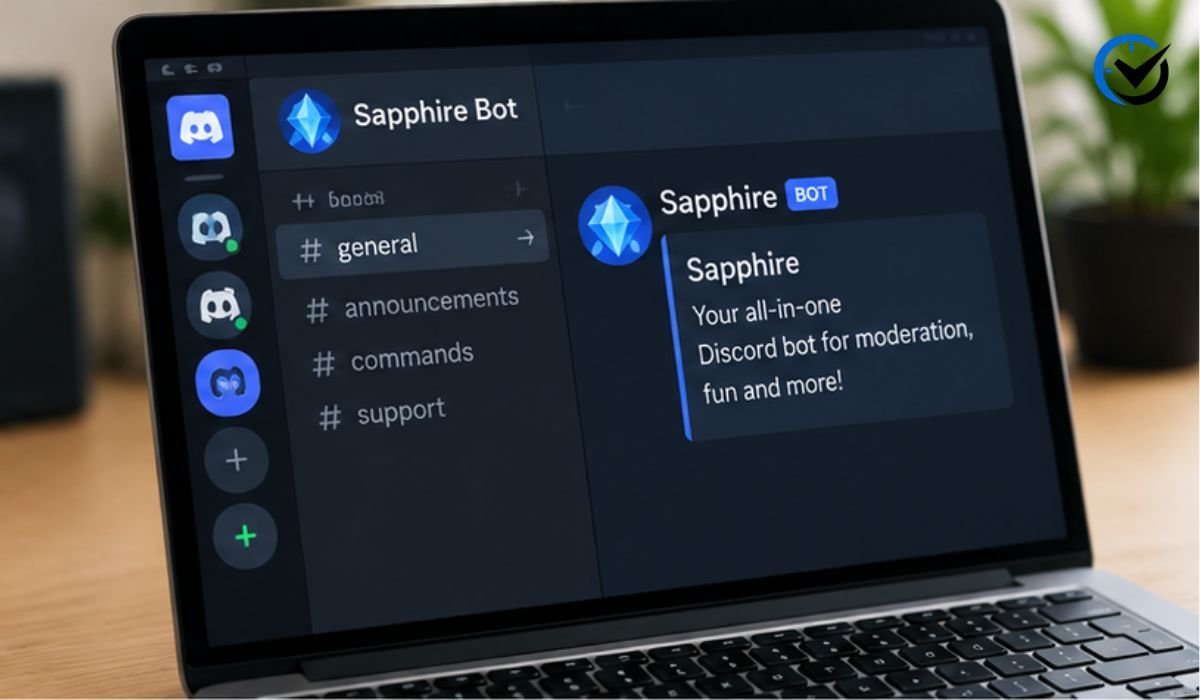
Sapphire is a free, multipurpose Discord bot created for server owners, administrators, and moderators. Instead of installing a separate bot for every small function, administrators can use Sapphire to manage several common tasks from one place. Its tools may help with welcoming members, applying server rules, assigning roles, recording important events, and responding to unwanted behavior. Many settings can be adjusted through a web dashboard, reducing the need to memorize long commands. Available features and interface labels may change as the service develops, so administrators should always review the current dashboard before changing an active server.
Why Organized Discord Servers Need Automation
Automation becomes useful when a community starts receiving more messages and members than its staff can comfortably manage. A moderator may not immediately notice spam, repeated links, suspicious account activity, or inappropriate language. Automated rules can respond at once and record what happened for later review. They can also complete ordinary tasks, such as sending welcome messages or assigning entry roles. This does not remove the need for human judgment. Instead, it gives moderators more time to answer questions, settle disagreements, plan activities, and support members who need personal attention.
Adding Sapphire to a Discord Server Safely
Only invite the bot through its official website or another verified Sapphire page. The person completing the setup normally needs permission to manage the server. During installation, Discord displays the access being requested, the selected server, and an authorization screen. Read every permission instead of approving it automatically. After the bot joins, place its role below the owner and senior administrator roles but above the member roles it needs to manage. A bot cannot moderate members whose highest role sits above its own. This role order is one of the most common reasons moderation actions fail.
Understanding Bot Permissions
Discord permissions determine exactly what Sapphire can see and do. A welcome system may need access to view a channel and send messages, while a moderation function may require permission to manage messages, time out members, or control certain roles. Avoid granting Administrator access simply because it makes setup easier. Giving only the permissions required for enabled features limits damage if a configuration error or account security problem occurs. Review access channel by channel as well, because category overrides can conflict with server-wide settings. Recheck permissions whenever channels, staff roles, or moderation features are reorganized.
Using the Dashboard Without Losing Control
The dashboard gives administrators a visual way to configure modules, choose channels, edit messages, and define automated responses. Begin with a small number of essential functions rather than enabling every available option at once. Save one change, test it, and then move to the next setting. This approach makes errors easier to identify. Keep a private staff record describing important settings, responsible administrators, and recent changes. If several people can edit the dashboard, agree on an approval process. Uncoordinated adjustments can create duplicate messages, conflicting filters, or moderation actions that staff members do not understand.
Creating a Clear Welcome Experience
A good welcome process helps new members understand where they have arrived and what to do next. Sapphire can be configured to send a greeting in a public welcome channel or provide instructions through a more private method when supported. Keep the message friendly and practical. It should point members toward the rules, introductions, support area, and any verification steps. Avoid filling it with every detail about the community. A short path is easier to follow. Test the message with a temporary account to confirm that newcomers can see every mentioned channel and are not sent toward areas blocked by role restrictions.
Managing Roles and Member Access
Roles help separate members, staff, subscribers, event participants, age-restricted areas, or topic-based groups. Automated role tools can reduce staff workload, but they require careful limits. Never allow a self-selected role to grant moderation powers or access to private staff channels. Place optional identity and interest roles below trusted staff positions in the hierarchy. Use clear names and colors so members can understand their purpose. If Sapphire supports reaction-based or button-based role selection in the current configuration, test every choice after changing role order. Remove outdated role menus so members do not select roles that no longer serve a purpose.
Building Practical Automoderation Rules
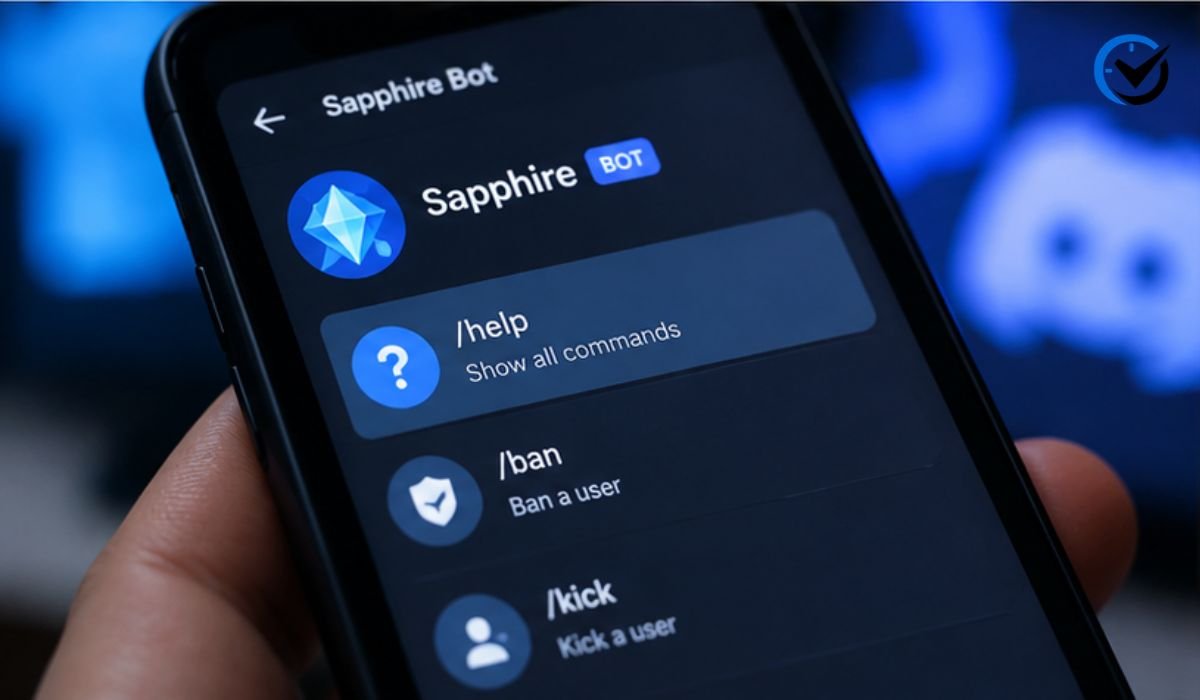
Automoderation works best when it targets specific, observable behavior. Useful controls may address repeated messages, excessive mentions, unwanted invitations, suspicious links, prohibited terms, or other disruptive patterns. Start with moderate limits and review the results before increasing enforcement. Filters that are too strict may punish normal conversation, multilingual messages, or members sharing legitimate resources. Whenever possible, begin with message removal, a warning, or staff notification before using stronger penalties. Maintain an appeal process for mistakes. Automated systems recognize patterns, but they cannot always understand humor, context, emergencies, or established relationships between community members.
Logging Events for Transparency
A private log channel can help staff understand what happened before and after a moderation action. Depending on the enabled tools, records may include deleted messages, edited content, member changes, role updates, warnings, or staff actions. Restrict these channels to trusted moderators because logs can contain personal conversations or material removed for safety reasons. Records should support accountability, not become entertainment for staff. Decide how long information needs to remain useful and remove old records when appropriate. If a serious incident occurs, preserve only the information necessary for a fair review and follow Discord’s policies and applicable local requirements.
Designing Fair Warnings and Penalties
A strong moderation system uses clear consequences that match the seriousness of an action. Minor first-time problems may need a reminder, while repeated spam or targeted harassment may justify stronger restrictions. Configure automated actions around written community rules rather than personal preferences. Moderators should know when they may change, remove, or extend a penalty. They should also record a short reason for important actions. Permanent bans deserve careful human review unless there is an immediate and obvious threat. Fair enforcement builds trust because members can understand both the rule and the reason a particular response was chosen.
Preventing Spam and Coordinated Disruption
Spam protection should combine automated limits with sensible server design. New-member channels can have slower message rates, limited media access, or temporary restrictions until users complete verification. Sapphire can assist by identifying configured behavior patterns and applying the selected response. However, no bot can guarantee complete protection against every raid or coordinated attack. Staff should maintain Discord’s built-in safety settings, require stronger account security for moderators, and prepare an emergency response plan. During sudden disruption, temporarily limiting new participation is often safer than changing many permanent settings while the moderation team is under pressure.

Maintaining Sapphire Over Time
Bot configuration is not a one-time job. Communities change, old channels disappear, roles are renamed, and rules develop as new situations arise. Review the setup regularly and after every major server reorganization. Confirm that Sapphire remains online, can access its assigned channels, and has the correct role position. Examine logs for repeated false warnings or actions that never trigger. Remove unused modules because unnecessary automation adds confusion and may require avoidable permissions. Staff members should also know how to moderate manually if the bot becomes unavailable. A resilient server never depends completely on one external service for safety or access.
Final Thoughts
The Sapphire Discord Bot can make community management more consistent by handling routine messages, roles, records, and moderation responses. Its real value depends on thoughtful configuration rather than the number of modules enabled. Begin with essential tools, grant limited permissions, test each feature, and keep people involved in serious decisions. Clear rules and fair enforcement should guide every automated action. When paired with attentive moderators and regular reviews, Sapphire can support a Discord server that feels organized, welcoming, and safer without making ordinary members feel watched or restricted.
Frequently Asked Questions
1. Is Sapphire Discord Bot free to use?
Sapphire is generally presented as a free multipurpose bot for Discord communities. Its standard tools can help owners manage common server tasks without combining many separate bots. Features and service plans can change, however, so review the current official dashboard before relying on a specific function. Never enter payment details on an unverified page claiming to represent the bot.
2. Is Sapphire safe for a Discord server?
It can be used safely when installed from an official source and given carefully limited permissions. Safety also depends on the server owner’s configuration. Review every requested permission, protect administrator accounts with two-factor authentication, and avoid giving the bot access it does not need. Regular permission checks remain important after roles or channels are changed.
3. Does Sapphire replace human moderators?
No. It can complete predictable tasks and react to configured patterns, but it cannot fully understand intent, cultural differences, jokes, or complicated disputes. Human moderators should review serious actions and handle appeals. The bot is most effective as a support system that reduces repetitive work while people remain responsible for important community decisions.
4. Why is Sapphire not responding to commands?
The bot may be offline, missing permission to view or write in the channel, or restricted by a channel override. Its role may also be too low to complete the requested action. Check the dashboard, server permissions, role hierarchy, and the command format currently supported. Testing in a private staff channel can help isolate the problem.
5. Why can Sapphire not assign a role?
Discord bots cannot manage roles positioned above their highest server role. Move Sapphire’s role above the role it needs to assign, but keep it below trusted administrator positions. Also confirm that it has permission to manage roles and that channel-specific restrictions are not interfering. Never allow automated role selection to grant sensitive staff access.
6. Can Sapphire welcome new members automatically?
A welcome module can usually send an automated message when a member joins, depending on the currently available configuration. Administrators can select an appropriate channel and prepare useful onboarding text. The message should direct newcomers to rules, verification, introductions, and help channels without overwhelming them with excessive detail or decorative content.
7. Can it help stop spam and raids?
Automated filters can reduce repeated messages, mass mentions, suspicious links, and other configured behavior. They are only one part of server protection, however. Combine them with Discord’s native safety options, sensible entry restrictions, secure staff accounts, and an emergency plan. Review false detections regularly so genuine members are not unfairly punished.
8. Should Sapphire receive Administrator permission?
Administrator access is rarely the best starting choice because it grants broad control across the server. Enable only the permissions needed for the modules you actually use. Limited access reduces risk and makes configuration easier to understand. If a feature fails, identify its exact permission requirement instead of immediately granting complete administrative control.
9. Who should have access to the Sapphire dashboard?
Dashboard access should be limited to the owner and trusted senior staff members responsible for server configuration. Too many editors can make untracked changes or create conflicting rules. Keep a simple change record and require staff to discuss major moderation adjustments. Remove access promptly when someone leaves the administrative team or changes responsibilities.
10. How often should the bot’s settings be reviewed?
A monthly or quarterly review works well for many communities, although fast-growing servers may need checks more often. Review the configuration after major channel changes, new role structures, rule updates, or unusual moderation incidents. Confirm permissions, message destinations, filters, logs, and automated penalties. Regular testing prevents small configuration mistakes from becoming larger community problems.
Recommended: How Xpress Engine Became a Popular South Korean Web Framework
Admin
Send an email
September 12, 2026




One Comment